TutorMe gave students from GCSE to postgraduate level one to one tuition over the web, in a virtual classroom with video, voice and a shared whiteboard. The classroom worked, but it had been built by several designers over time and it showed. I was asked to redesign it so the technology got out of the way of the teaching.
At a glance
- Client: TutorMe
- My role: Freelance interaction designer, largely self-managed, working with an offshore development team
- When: 2014, with a later iteration in 2017
- Deliverables: wireframes, visual design, HTML prototypes of the classroom and its start up flow
The problem
The brief put it well: TutorMe isn't about the technology, it's about matching a learner and a tutor and letting each get the best out of the other. The tech is just the vehicle, and it should complement that, not distract from it.
The classroom had three kinds of user, tutor, student and a silent observer, and a long list of features: video and voice, text chat, a shared blackboard with zoom and multiple boards, file and video upload, handing control to the student, and a set of annotation tools. Each feature had been added by a different hand. The interface wasn't cohesive, it leaned on skeuomorphic touches that dated it, and the states of the tools weren't clear. And the blackboard, the brief noted, needn't be black.
The bigger issue was getting into the room at all.
The gates
A session could only work if the user had the right browser, a fast enough connection, a webcam, a microphone and, hardest of all, had clicked "Allow" on the browser's permissions bar. That last one caused most of the support problems. People would arrive for a lesson, see nothing, and not know why.
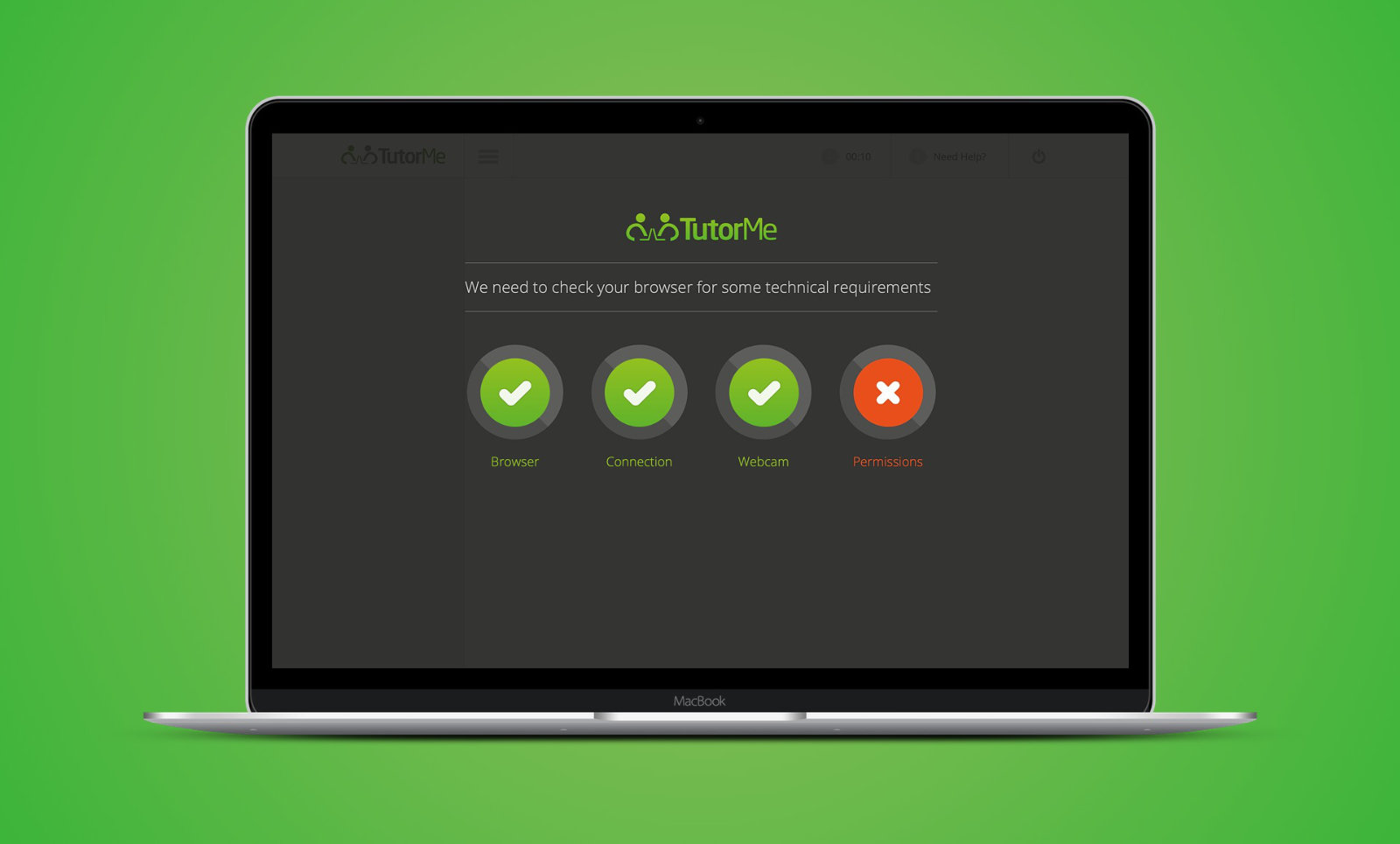
So I started with the moment before the classroom. The redesigned start up runs each check in turn and shows the result as four plain indicators, with the one that's failed picked out and an explanation of what to do about it. If the permissions bar is the problem, the screen says so, shows where it is and asks the user to click Allow. A first time user is offered a short tour of the tools before their first session, and can tell us not to show it again.
The classroom
Inside the room I rebuilt the interface around one principle: the whiteboard is the lesson, everything else is furniture.
- A single toolbar for pointer, highlighter, drawing, text, line, eraser, zoom, undo, redo and clear all, with clear selected states so both people can see which tool is in use.
- Boards and files in one list, so a tutor can flip between a whiteboard and the PDF a student uploaded without hunting.
- Video that can expand when the conversation matters more than the board, and shrink back when it doesn't.
- Assign control as a visible, deliberate action, so a student knows when they're driving.
- A session timer and help always in the same place, and an end of session feedback form for both people.
The whole thing had to scale from a small laptop to a 27 inch screen, which pushed me towards a flexible layout rather than a fixed canvas. And the blackboard became a whiteboard.
What I learned
The most valuable screen in a product is sometimes the one that tells you why it isn't working yet. Designing the failure states properly removed more frustration than any new feature would have.